

Accepting your invitation
Your COOLAI account starts with an invitation from your team. Accept it and set your password to get in.
COOLAI accounts are created by invitation. There's no public sign-up: an administrator on your
team invites you, and you receive an email with a confirmation code.
Before you beginLook for an invitation email from COOLAI containing your confirmation code. If you
haven't received one, ask your team's admin to invite you (see
Inviting a team member).
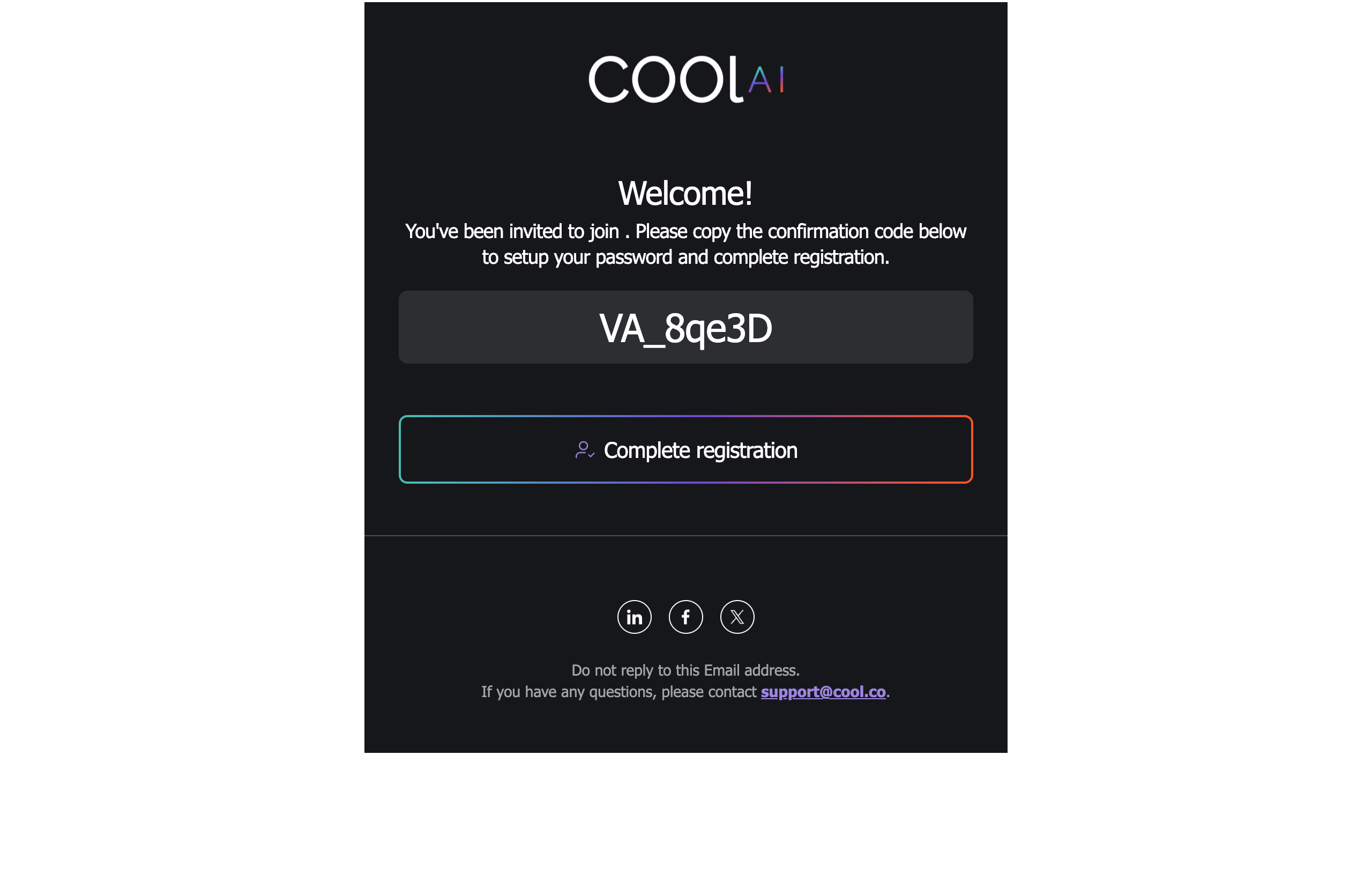
Step 1: Open your invitation email
The invitation email contains a confirmation code and a link. Click the link to open the
invitation page.
Step 2: Fill out the registration form
On the invitation page, enter your full name, your email address, and the
confirmation code from the email, then click Continue.
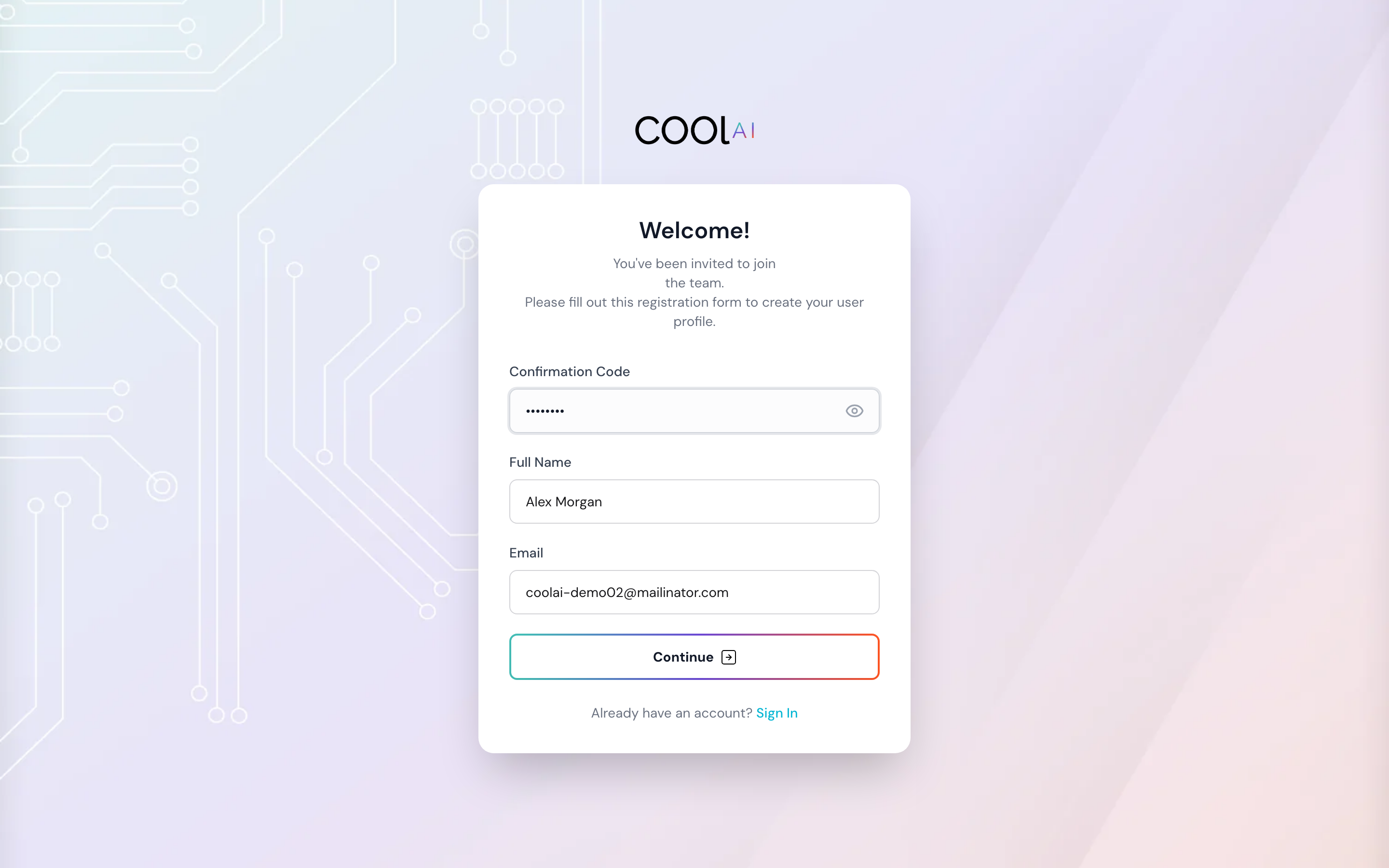
TipCopy the confirmation code straight from the email to avoid typos. It's only used this once.
Step 3: Set your password and name
Enter your full name and choose a new password. COOLAI shows the password requirements
as you type. Confirm the password to finish setting up your account.
Step 4: You're in
Once your password is set, COOLAI logs you in and opens your dashboard, where you can start
working with your brand and campaigns.
Next time you sign inSign in on the login page with your email and the new password you just set.
The confirmation code no longer works.
What's next
Updated about 2 months ago