

Roles & permissions
What Super Admin, Admin, and Limited Access members can and can't do.
Every member of a company has a role that controls what they can see and do. You assign a role
when you invite a member, and you can change it anytime from Settings ▸ Members.
Before you beginOnly Admins and Super Admins can view or change roles.
The roles at a glance
- Super Admin: full control, including company settings and billing. Best for the account
owner. - Admin: handles all day-to-day work (brands, creatives, campaigns, inviting teammates), but
not company-level billing or settings. - Limited Access: read-only. Can view brands, creatives, campaigns, and analytics, but can't
change anything. Use it for clients, reviewers, and stakeholders.
| Capability | Super Admin | Admin | Limited Access |
|---|---|---|---|
| View brands, creatives, campaigns, analytics | ✅ | ✅ | ✅ |
| Create/edit brand kits, creatives, campaigns | ✅ | ✅ | — |
| Launch campaigns to platforms | ✅ | ✅ | — |
| Invite / remove members, change roles | ✅ | ✅ | — |
| Company settings & billing | ✅ | — | — |
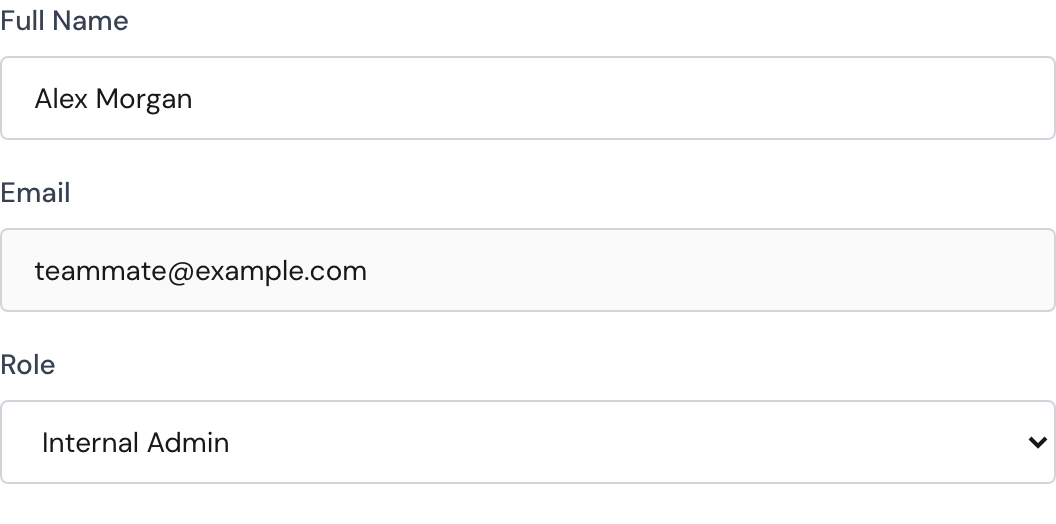
Changing a role
In Settings ▸ Members, open a member and pick a new role. The change takes effect the next
time they load the app.
TipGive clients and reviewers Limited Access so they can follow results without editing
anything. Reserve Super Admin for the one or two people who own billing.
What's next
Updated about 1 month ago
Did this page help you?