

Inviting a team member
Add teammates to your company and assign the right role so your team can collaborate.
Invite colleagues into your COOLAI company to help build brand kits, generate creatives, and run
campaigns. Each person you invite gets a role that controls what they can do.
Before you beginYou must be an Admin or Super Admin to invite members. You'll need each teammate's
email address. Not sure which role to give? See Roles & permissions.
Step 1: Open the Members settings
In the sidebar, click Settings, then open the Members tab.

Step 2: Start an invitation
Click + Invite Member. A dialog opens where you'll enter the invite details.
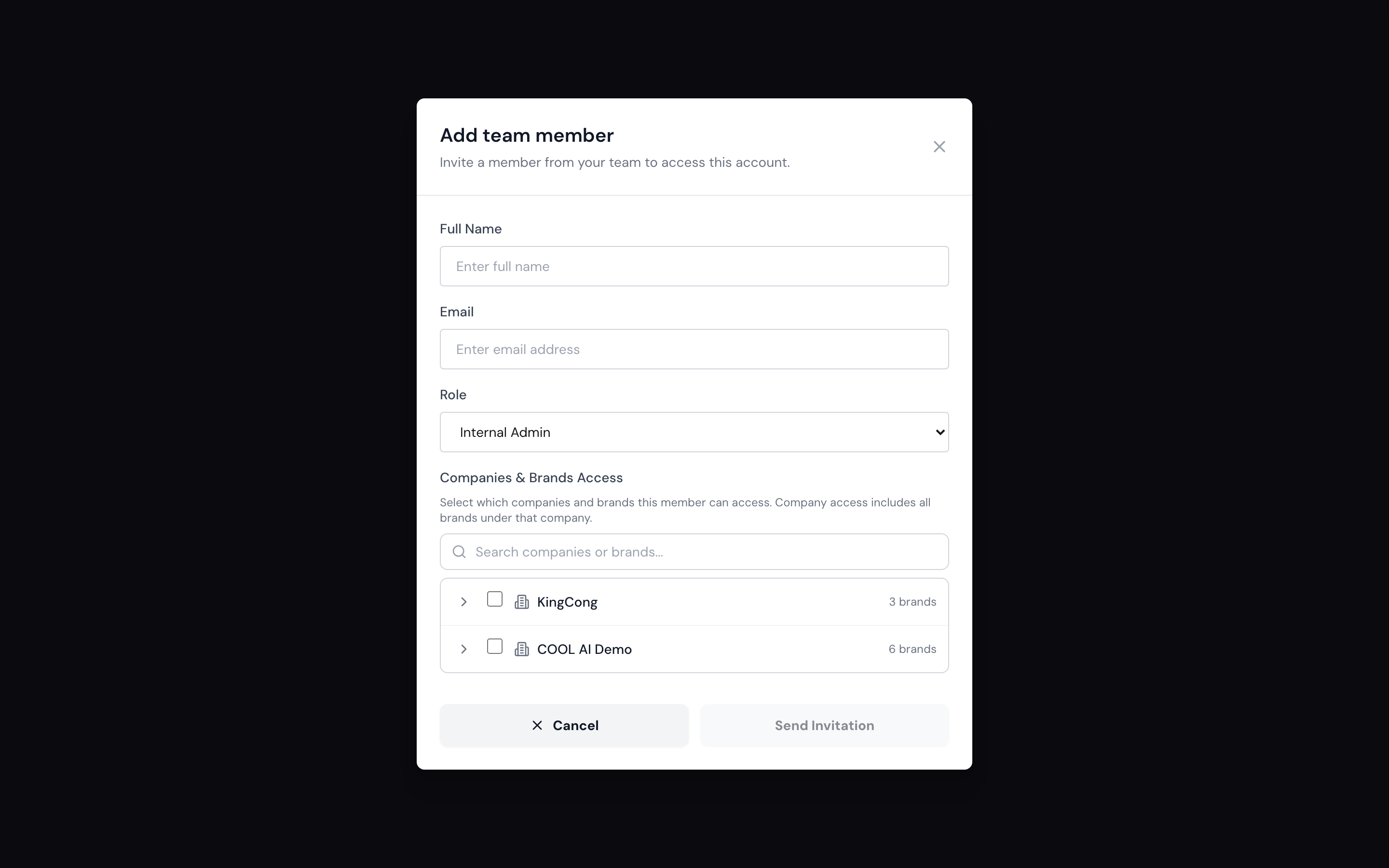
Step 3: Enter the email and choose a role
- Type the teammate's email address.
- Select a role:
- Super Admin: full access, including billing and company settings.
- Admin: full access to this company's brands, campaigns, and creatives.
- Limited Access: read-only. Can view but not change.
- Click Send invite.
TipGive people the least access they need. You can raise a member's role later from the same
Members tab.
Step 4: Your teammate accepts
COOLAI emails the invitation. Your teammate clicks the link, signs up (or logs in), and lands on
the website-scan step of onboarding. They skip company and brand setup because they're joining an
existing company.

Managing members
From the Members tab you can also:
- Change a role: pick a new role next to a member.
- Remove a member: revoke access and confirm in the dialog.
Watch outRemoving a member immediately revokes their access to every brand and campaign in the company.
What's next
Updated about 1 month ago