

Reviewing & editing creatives
Fine-tune copy and visuals, regenerate weak creatives, and get your set launch-ready.
A generated set is a starting point. This page covers how to review each creative and
polish it before you launch.
Before you beginGenerate a set first; see Generate a creative set. Make sure the
right brand is selected in the top-right brand selector, since the library shows creatives
for the selected brand only.
Browse and filter
Open Creatives to see the library. Use the filter bar to focus on a subset, then click
Apply Filters:
- Campaign: creatives tied to a specific campaign
- Channel: Display, Social, Search, or AI Chats
- Platform: Google, Meta, LinkedIn, etc.
- Size / Format: e.g. 1200×1200, story, carousel
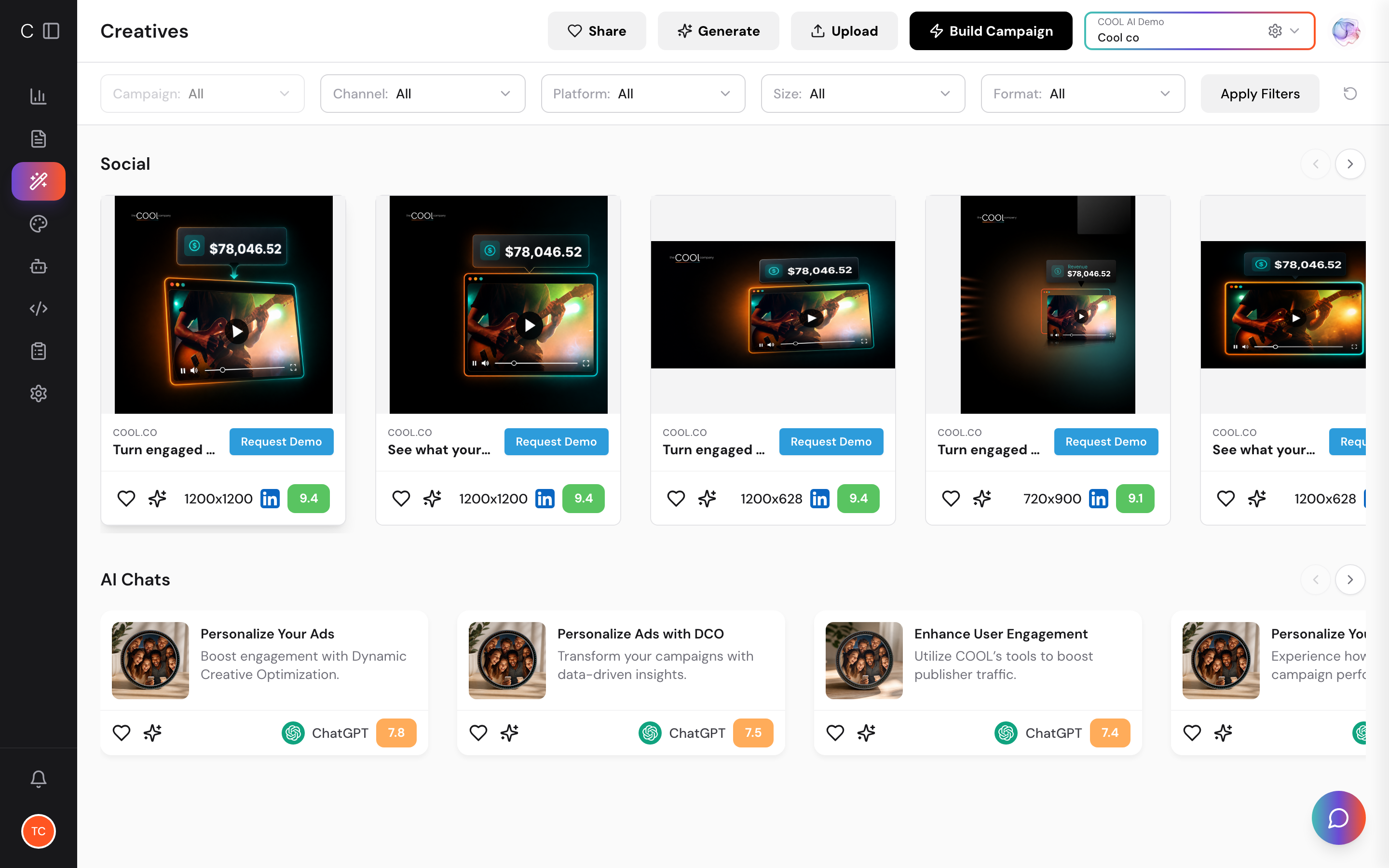
Edit a creative
- Click a creative to open its editor.
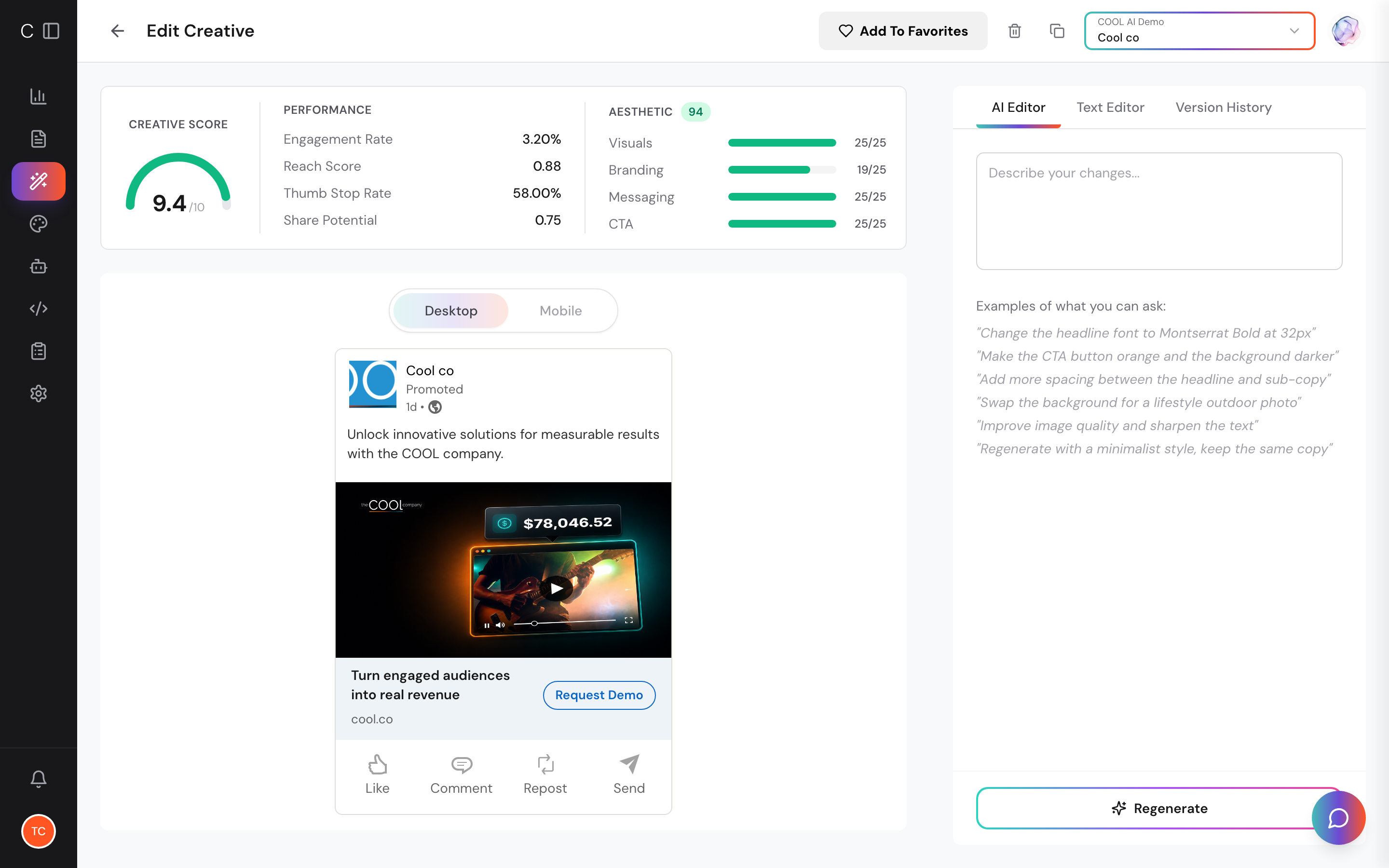
- Update the headline, description, or CTA text. The preview updates live so you
can see the result in-format. - Save your changes. The updated creative stays in the library and keeps its place in any
campaign it's attached to.
TipKeep headlines within the platform's character limits. COOLAI flags copy that's too long for
the format, which also shows up in the creative's quality score.
Regenerate the ones you don't love
To fix creatives that miss the mark, select them and choose Regenerate. COOLAI produces fresh
variants from your brand kit and brief, so you don't have to regenerate the whole set.
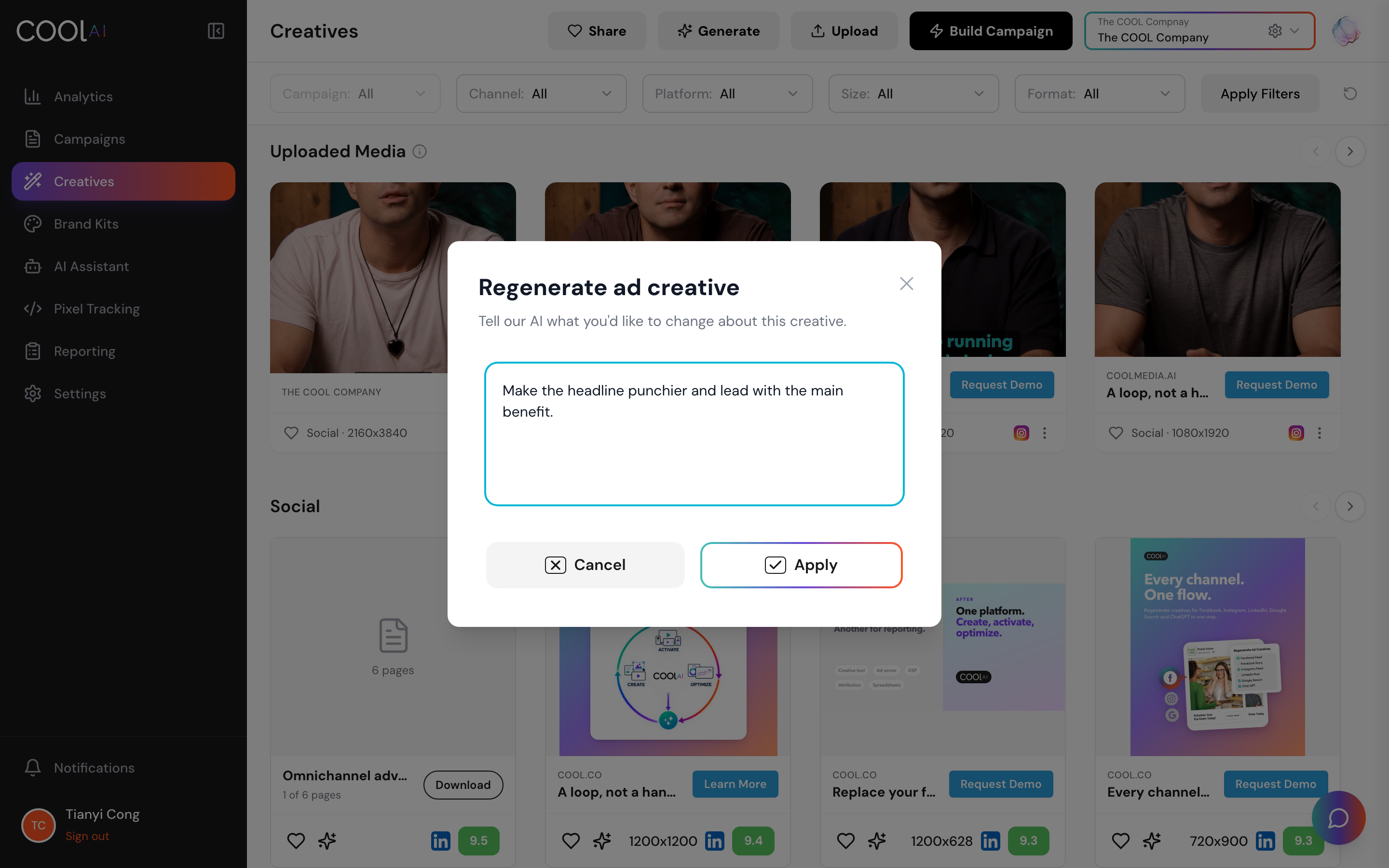
TipRegenerate a few at a time and compare. Because each variant uses the same brand kit,
they stay on-brand even as the layout and copy change.
What's next
Updated about 1 month ago