

Building your brand kit
Create a brand kit from your website: COOLAI scans your site and extracts your brand.
To build a brand kit, let COOLAI scan your website. It reads your site and extracts your logo,
color palette, fonts, products, and tone, then assembles a brand kit you can refine.
Before you beginHave your brand's website URL ready. If you just finished accepting your invitation,
your first brand kit may already be building. In that case, skip to
Review the results.
Step 1: Start a new brand kit
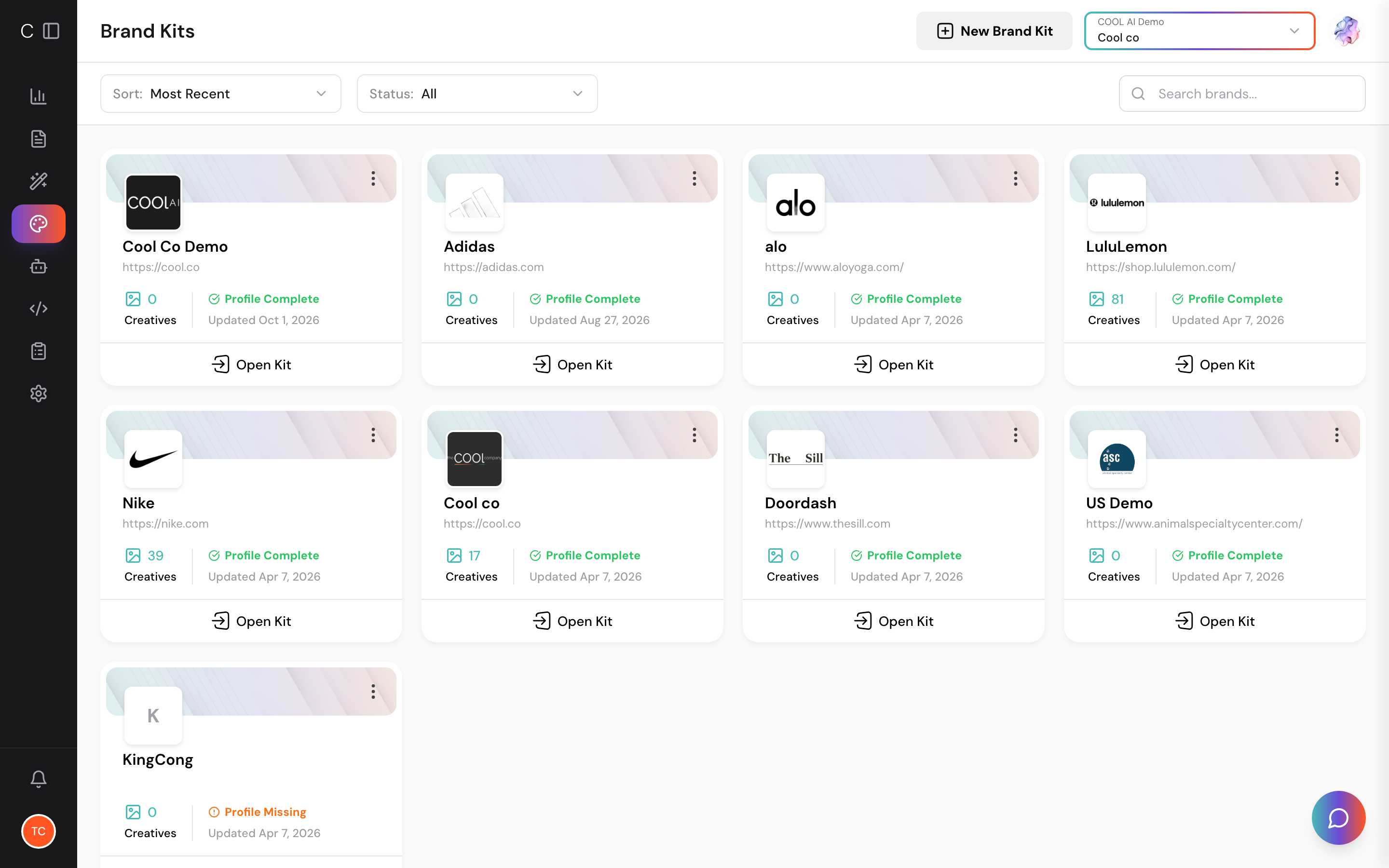
Open Brand Kits from the sidebar and click New Brand Kit.
Step 2: Enter your website URL
Type your brand's website URL and confirm. COOLAI checks that the site is reachable, then starts
the scan.
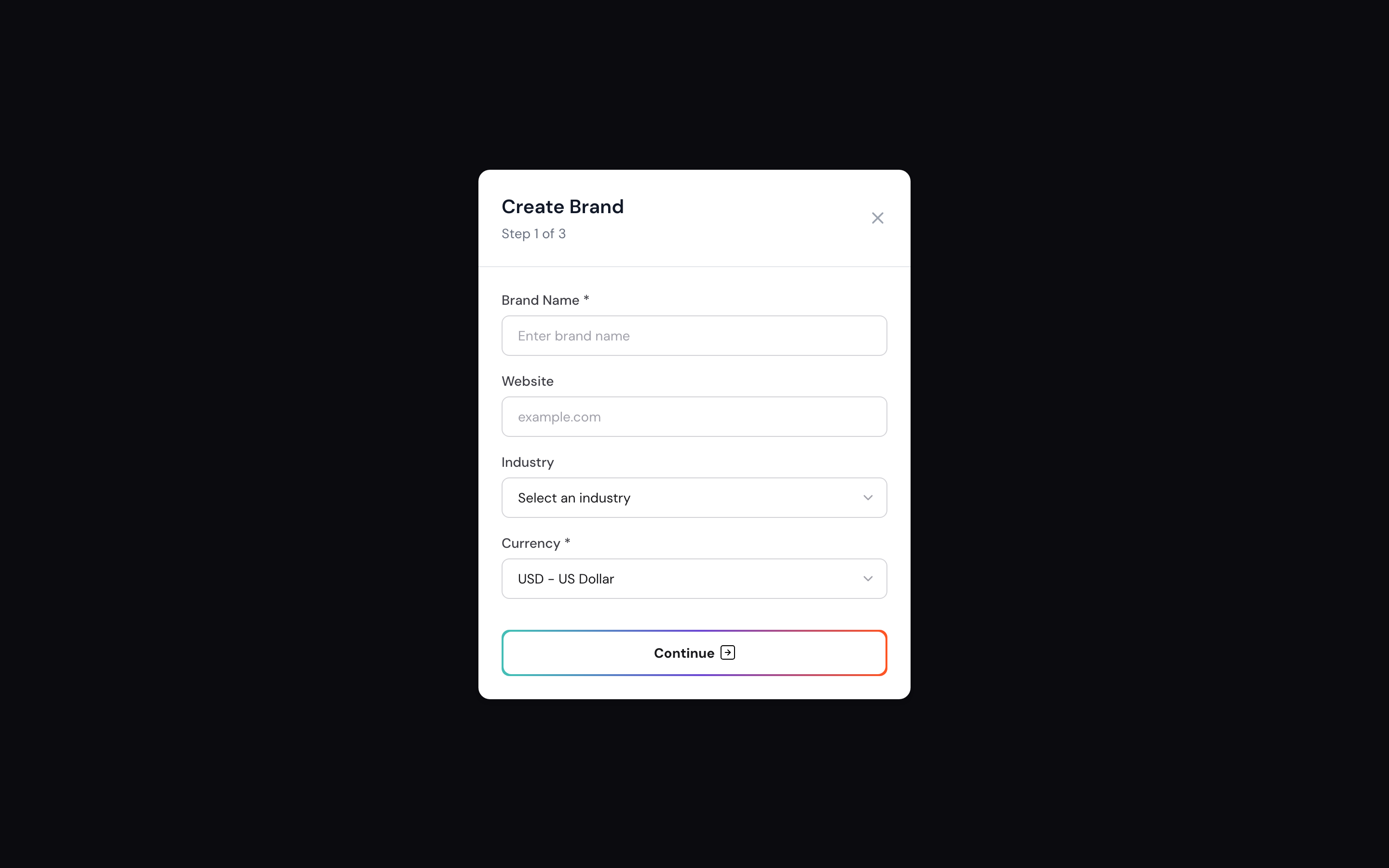
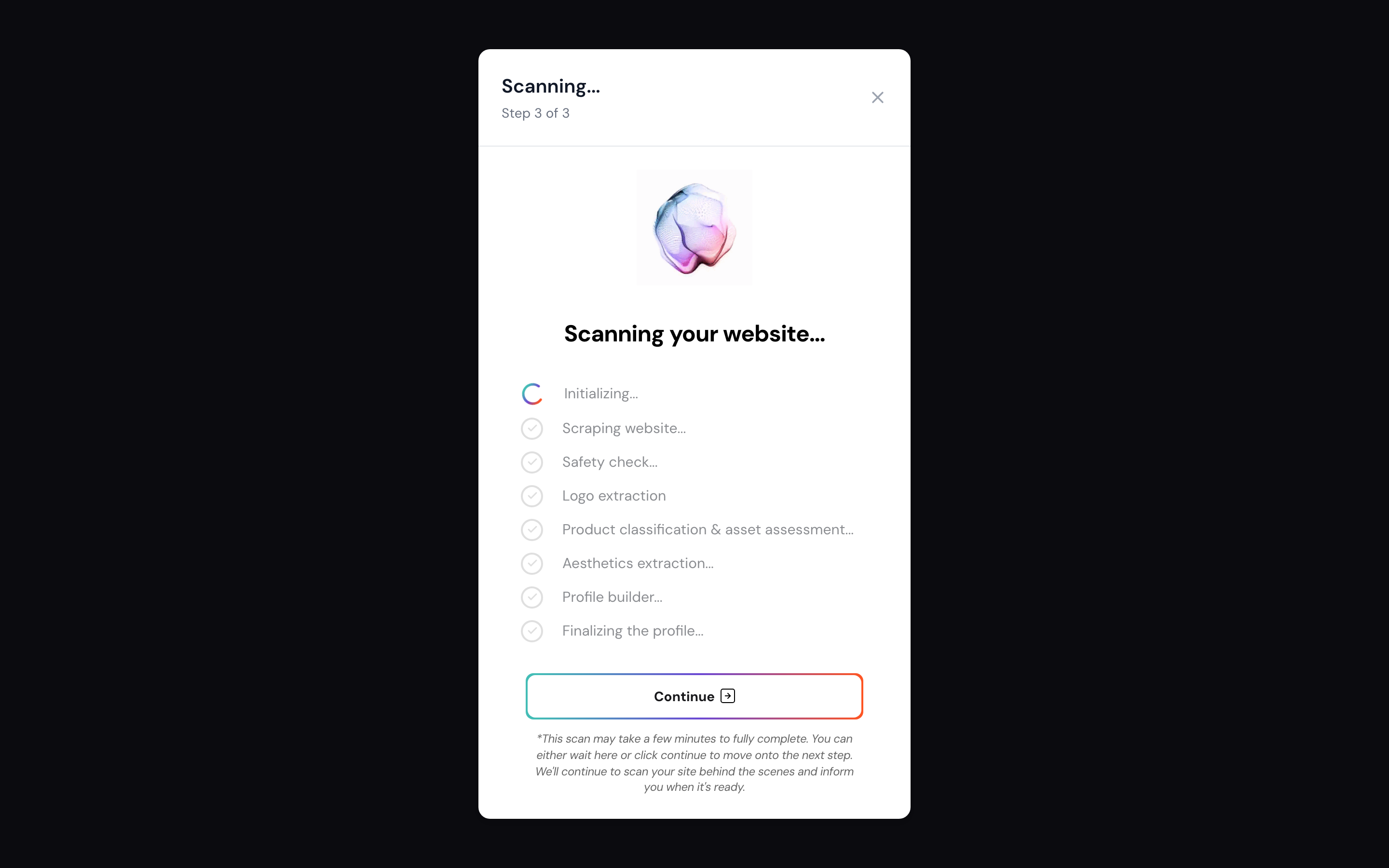
A progress screen moves through Initializing → Scanning → Processing → Complete. This usually
takes a few minutes.
Step 3: Review the results
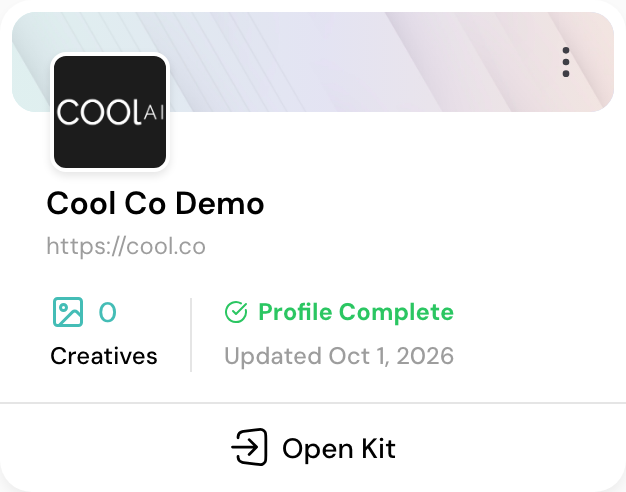
When the scan completes, your new brand kit appears on the Brand Kits page with a status of
Profile Complete. Click the brand card to open it and review what COOLAI found: profile,
colors, fonts, logos, and imagery.
TipProfile Processing means the scan is still running. Profile Missing or Incomplete
means you should rescan or fill in details manually. See Rescan & edit.
Step 4: Refine (optional)
Open the brand kit manager to adjust anything the scan got wrong, upload additional logos or
product images, and confirm your colors and fonts. See Manage brand assets.
Watch outYour brand kit feeds every creative. Fixing colors, logos, and tone here affects every campaign
you generate.
What's next
Updated about 2 months ago